EditingTeamPages
Purpose
This page provides guidance to people editing the neighborhood team pages, which are listed on the Teams page.
Getting Started
Wiki (not WordPress)
This is a wiki, which is a collaboratively edited website. Each edit to a page is recorded as a separate change, resulting in a history of what the page looked like in the past and which user made which changes to it. Wikipedia is the most famous example of a wiki, but there are important differences here, explained below.
Wikis are unfortunately not as pretty as WordPress. The emphasis is more on content than style.
Editors
There are two editors available:
- The visual (WYSIWYG) editor, entered via the
EditandCreatebuttons. - The wikitext (markup) editor, entered via the
Edit sourceandCreate sourcebuttons.
The visual editor is most useful for new users, but even users comfortable with markup will find it useful for e.g. providing template parameters. You can choose either, and even switch between them in the same editing session.
Your First Edit
- Log in with your account.
- Click
Editon your team page. - Update the schools listed for your neighborhood:
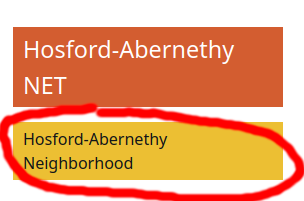
Double-click the yellow "Neighborhood" box on the right side of the page. 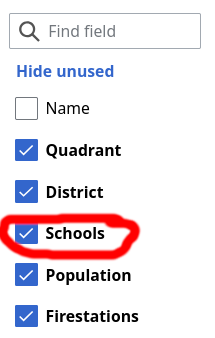
Check the "Schools" checkbox on the left side of the dialog. 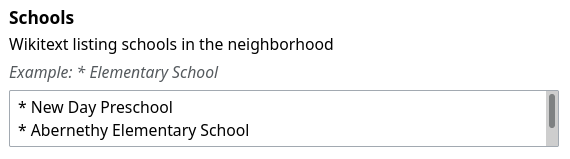
Find the "Schools" content section in the center of the dialog. Add schools you know of, one per line, with an asterisk ("*") at the beginning of the line. 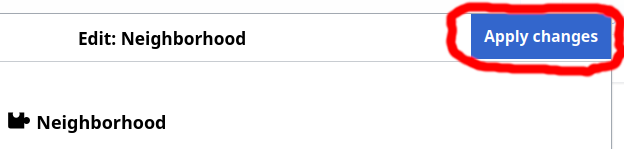
Click the Apply Changesbutton in the top right corner.
- Click the
Save page...button. - Provide a summary of your changes or rationale. For example, "Update school list".


Editing
What Goes On A Team Page?
Your team page could be the single link your team hands out at block parties or when new neighbors move in.
Please consider it a "landing page" that describes aspects of emergency preparedness that are unique to your neighborhood. For example,
- For potential volunteers:
- provide ways to engage with the local team (e.g. team point of contact, public discussion forums)
- describe unique considerations (e.g. "we work closely with this school," "we meet at this location", "90% of Oregon's fuel supply passes through our neighborhood")
- team accomplishments (e.g. "we've deployed at warming shelters", "we provided first aid at this parade")
- For existing team members:
- recognize team positions (e.g. Team Leader, Amateur Radio Operators)
- contain important links (e.g. to a shared team folder, or to the Operations Plan)
Some content belongs elsewhere:
- News: this content often goes stale, and is better shared in team discussion forums.
- Orientation to the NET program: this is best centralized at PBEM, rather than re-written by individual teams.
- Tips for personal preparedness: this is best centralized at PublicAlerts.org, rather than re-written by individual teams.
Team Page Editing Checklist
- ✅ Update the names (e.g. Team Leader) and contact information in the {{Team}} template.
- ✅ Check the link to your Operations Plan, and use the "plan_name" parameter to the {{Team}} template if it doesn't match. (All Ops Plan links are hosted on portland.gov. If yours is out of date, email an updated file to
 net@portlandoregon.gov.)
 - ✅ Add/update neighborhood populations in the {{Neighborhood}} templates. (See Neighborhood Demographic Profiles page.)
- ✅ Add/update BEECN and fire station sites in the {{Neighborhood}} templates. (See BEECNs and Fire Stations map.)
- ✅ Add/update schools in the {{Neighborhood}} templates.
- ✅ Use #Link Templates for pretty little icons.
- ✅ Read the #Policies section below.
Can I Upload Photos Or Team Documents?
For most files, please upload them separately and link to them from your team pages.
Where to host different types of files:
| file type | where to host it |
|---|---|
| small inline images (e.g. team members in action) | team page |
| small inline neighborhood map | team page |
| Photo albums (e.g. team exercises) | send an email to net@portlandoregon.gov for an upload link for PBEM's Lightroom account, or
use 3rd-party hosting (e.g. Google Photos, Flickr) |
| Operations plans | email to net@portlandoregon.gov for hosting at NET Team Operations Plans
|
| Meeting minutes | use 3rd-party file hosting (e.g. Google Drive) |
| Internal team documents (e.g. spreadsheets, planning documents) | use 3rd-party file hosting (e.g. Google Drive) |
| Outreach materials | use 3rd-party file hosting (e.g. Google Drive) |
Link Templates
For example:
| Template | Displays as |
|---|---|
| {{EmailLink|net@portlandoregon.gov}} | Email
|
| {{FacebookLink|groups/portlandprepares|name=PortlandPrepares}} |  PortlandPrepares PortlandPrepares
|
Click on each template in the list below to understand how to use it:
- Template:EmailLink
- Template:GoogleDocLink
- Template:FacebookLink
- Template:GroupsLink
- Template:InstagramLink
- Template:SignalLink
Embedding Other Content
Google Calendar
- On the Google Calendar website, click on the
...icon next to the calendar you want to share and clickSettings - In the "Integrate calendar" section, copy the text labeled "Public URL to this calendar". Example:
https://calendar.google.com/calendar/embed?src=en.usa%23holiday%40group.v.calendar.google.com&ctz=America%2FLos_Angeles - Remove the text up to and including the question mark. Example:
src=en.usa%23holiday%40group.v.calendar.google.com&ctz=America%2FLos_Angeles - Add
&mode=AGENDAto the end. - On the team page, add the wikitext
Special:IframePage/GoogleCalendar|path=followed by your calendar code, surrounded by double curly-braces{{}}
Example: {{Special:IframePage/GoogleCalendar|path=src=en.usa%23holiday%40group.v.calendar.google.com&ctz=America%2FLos_Angeles&mode=AGENDA}}
YouTube/Vimeo/etc
- Copy the video ID from the video's URL or Share link. For YouTube URLs, it comes after
v=, as inhttps://www.youtube.com/watch?v=ID - Place the title in wiki code like this
{{#ev:youtube|ID|||'''''Video: <title>'''''}} - See the EmbedVideo documention for more details.
Example: {{#ev:youtube|jWeQd6-BIdQ|||'''''Video: Equipment Tips and Tricks: Listen to your Radio'''''}}
Maps, Google Photos, etc
No solution yet. Send an email to net@portlandoregon.gov with your request.
How to get help
- Start at https://mediawiki.org. Keep in mind that advanced MediaWiki features may require extensions that are not installed here.
- To reach the administration team of this site, send an email to net@portlandoregon.gov.
Can other NET members edit my team's page?
Yes, and these contributions should be welcomed.
- Watch your team's page so you receive notifications when it's changed.
- If someone else's change needs improvement, improve it.
- If there is a disagreement that can't be resolved, send an email to net@portlandoregon.gov for help.

