'''''A: Changing most information about a BEECN resource, such as an address, is easy. But names are trickier because a resource name is attached to many data elements in the system.''''' So here are the steps you need to take:
'''''A: Changing most information about a BEECN resource, such as an address, is easy. But names are trickier because a resource name is attached to many data elements in the system.''''' So here are the steps you need to take:
# You'll need to work in the following sheets (for workflow, I recommend opening all of them in tabs side by side): [https://app.smartsheet.com/sheets/fcgR5Hmqr6Vx7p2R8pqVGgH9jRwv4XjV4p7MqgH1?view=grid 1.) BEECN Master Tracker]; [https://app.smartsheet.com/sheets/74Fjcp9RrXv4962XMMjqVxhhmw3Mxfv8r9PfhHf1?view=grid 2.) BEECN Journal]; [https://app.smartsheet.com/sheets/R28g68pHrF7mcGWgJjxj9h7Hvj3cmJQFgj62Vqr1?view=grid 3.) BEECN Volunteers]; [https://app.smartsheet.com/sheets/fCFH5jMCC5w7mpfrvHJfvXFrpP7wvqr6hQ5p9J21?view=grid 4.) BEECN Trouble Tickets]. The column you'll be working in all of these sheets is the one with the heading "Resource Name".
#[[File:Step 3- Changing the resource name in the dialogue box..png|alt=Step 3: Changing the resource name in the dialogue box.|thumb|'''Step 3:''' Changing the resource name in the dialogue box.]]You'll need to work in the following sheets (for workflow, I recommend opening all of them in tabs side by side): [https://app.smartsheet.com/sheets/fcgR5Hmqr6Vx7p2R8pqVGgH9jRwv4XjV4p7MqgH1?view=grid 1.) BEECN Master Tracker]; [https://app.smartsheet.com/sheets/74Fjcp9RrXv4962XMMjqVxhhmw3Mxfv8r9PfhHf1?view=grid 2.) BEECN Journal]; [https://app.smartsheet.com/sheets/R28g68pHrF7mcGWgJjxj9h7Hvj3cmJQFgj62Vqr1?view=grid 3.) BEECN Volunteers]; [https://app.smartsheet.com/sheets/fCFH5jMCC5w7mpfrvHJfvXFrpP7wvqr6hQ5p9J21?view=grid 4.) BEECN Trouble Tickets]. The column you'll be working in all of these sheets is the one with the heading "Resource Name".
# Starting with the Master Tracker: in the column labeled "Resource Name", find the resource you want to rename and then rename it. Then, hit Ctrl+S to save your work. Move to the BEECN Journal sheet.
# Starting with the Master Tracker: in the column labeled "Resource Name", find the resource you want to rename and then rename it. Then, hit Ctrl+S to save your work. Move to the BEECN Journal sheet.
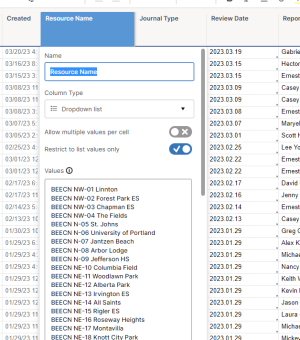
# [[File:Step 3- Changing the resource name in the dialogue box..png|alt=Step 3: Changing the resource name in the dialogue box.|thumb|'''Step 3:''' Changing the resource name in the dialogue box.]]For the next three sheets, you will follow the same process. Double-click the column header box labeled "Resource Name". When you do this, a dialogue box similar to the one in the picture to the right will open (image labeled "Step 3"). Find the resource you want to rename and rename it. Then, and this is '''''very''''' important, scroll to the bottom of the dialogue box and click "OK". If you ignore this step, your changes will not take.
# For the next three sheets, you will follow the same process. Double-click the column header box labeled "Resource Name". When you do this, a dialogue box similar to the one in the picture to the right will open (image labeled "Step 3"). Find the resource you want to rename and rename it. Then, and this is '''''very''''' important, scroll to the bottom of the dialogue box and click "OK". If you ignore this step, your changes will not take.
# When you click "OK" you might get an error message. If you do, just click "OK" to ignore it.
# When you click "OK" you might get an error message. If you do, just click "OK" to ignore it.
# Next, single-click the column header labeled "Resource Name"; doing so should highlight the column.
# Next, single-click the column header labeled "Resource Name"; doing so should highlight the column.
Revision as of 17:39, 28 March 2023
This is not necessary reading for BEECN volunteers, and only PBEM staff have access to the back end of the BEECN Journaling System. The main purpose of this part of the article is to preserve institutional knowledge.
The sheets in Smartsheet that make up the back end (and dashboard) of the BEECN Journaling System.
Inputs to the BEECN Journal Entry Form on SmartSheet are reflected in five PBEM-internal spreadsheets and a public-facing BEECN dashboard. The section following explains each of these sheets individually.
Only PBEM staff working on the BEECN program should have access to this sheet. The Master Tracker is the universal almanac of all BEECN resources since 2013: caches, radios, the UHF repeater, and the radio room. There is infrequent reason to change anything on this sheet; the need would emerge only if a new resource is added or the location of a resource changes. Many columns are locked because formulas govern the values in the cells and/or the data displayed is pulled from a different sheet. Any column not locked contains data that can be changed on this sheet.
There are 29 unhidden columns, so different sections are color coded for easier scanning and review. Moving from left to right:
...
Resource basics and site info (color coded light green)
#_locked_ - The number column is there to make it easy to sort the resources. By right clicking on the column and selecting "Sort Ascending", BEECN caches appear on top, followed by fire station, followed by anything else.
Resource Name - The name of the BEECN resource. If adding a resource, it is very important to follow the common naming conventions. For example, if you wanted to add the fifty-first BEECN and it was located at Pier Park in St. Johns, its name would be "BEECN N-51 Pier Park".
Site: Hexad - Indicates Northwest, Northeast, South, Southeast, Southwest, or North Portland. If a cache site is east of 82nd Avenue, a PBEM staffer can also indicate "East" in addition to Southeast or Northeast.
Site: Location - The exact address of the parcel the BEECN site (not necessarily the cache) is located on.
Site: Location Property - The type of property owner (school, park, private, etc) associated with the BEECN site. This should only be applied to BEECN caches and not orange kits or other resources.
Volunteer information (color coded light orange)
Vol: Coordinator_locked_ - Provides the name of the Coordinator for that BEECN crew. Vacancies appear highlighted in bright orange. This column pulls data from sheet "3.) BEECN Volunteers" and the individual cells cannot be changed. When volunteer records need updating, that should ALWAYS be done in the BEECN Volunteers Sheet. Formula is:=IFERROR(INDEX({VolSscontactX}, MATCH([*Vol: CoordID]@row, {VolTypeID}, 0), 1), "Vacant")
Vol: Asst Coordinator_locked_ - Provides the name of the Assistant Coordinator for that BEECN crew. Vacancies appear highlighted in bright orange. This column pulls data from sheet "3.) BEECN Volunteers" and the individual cells cannot be changed. When volunteer records need updating, that should ALWAYS be done in the BEECN Volunteers Sheet. Formula is:=IFERROR(INDEX({VolSscontactX}, MATCH([*Vol: AsstCoordID]@row, {VolTypeID}, 0), 1), "Vacant")
Vol: Assigned_locked_ - The number of BEECN volunteers assigned to that resource, as summed from "3.) BEECN Volunteers". Formula is:=COUNTIF({VolNameX}, [Resource Name]@row)
Radio data (color coded light blue)
Radio: Primary Relay - The priority resource that this BEECN resource is trying to communicate with. For BEECN caches, this is always a fire station. For fire stations, it will always be the ECC radio room. For all other resources, it will be "N/A".
Radio: Primary Relay Vol_locked_ - This is the number of volunteers assigned to the resource's Primary Relay. For example, NW-01's Primary Relay is FS-22. FS-22 has two assigned volunteers, so the integer appearing here is "2". This data is pulled from sheet "3.) BEECN Volunteers" and should never be changed on this sheet. Formula is:=COUNTIF({VolNameX}, [Radio: Primary Relay]@row)
Radio: Secondary Relay - The resource that this BEECN resource is trying to communicate with if operators cannot reach the Primary Relay. For BEECN caches, this is almost always a fire station. For fire stations and all other resources, it will be "N/A".
Radio: Secondary Relay Vol_locked_ - This is the number of volunteers assigned to the resource's Secondary Relay. For example, NW-01's Primary Relay is FS-26. FS-26 has one assigned volunteers, so the integer appearing here is "1". This data is pulled from sheet "3.) BEECN Volunteers" and should never be changed on this sheet. Formula is:=COUNTIF({VolNameX}, [Radio: Secondary Relay]@row)
Radio: Last Test_locked_ - The date this resource was last tested. This information is pulled from "2.) BEECN Journal". Formula is:=MAX(COLLECT({InspDateX}, {BEECNassetX}, [Resource Name]@row, {JournalTypeX}, "Reporting test results"))
Radio: Test Avg Two Years_locked_ - The average of all radio test scores for this resource on a scale from 0.00 to 5.00 over the past two years. This data is pulled from "2.) BEECN Journal". Formula is:=IFERROR(SUM(SUMIFS({JournalBeecnScores}, {BEECNassetX}, [Resource Name]@row, {InspDateX}, >TODAY(-730))) / COUNTIFS({JournalBeecnScores}, >=1, {BEECNassetX}, [Resource Name]@row, {InspDateX}, >TODAY(-730)), 0)
Radio: # of tests_locked_ - This indicates the number of times the resource has ever been tested since it was added to the system (in almost all cases, that will be early 2013). This data is pulled from "2.) BEECN Journal". Formula is:=COUNTIFS({BEECNassetX}, [Resource Name]@row, {JournalTypeX}, "Reporting test results")
Radio: Test Avg History_locked_ - Average of all radio test scores for this resource on a scale from 0.00 to 5.00 for all time since the resource was added to the system (in almost all cases, that will be early 2013). This data is pulled from "2.) BEECN Journal". Formula is:=AVERAGEIF({BEECNassetX}, [Resource Name]@row, {JournalBeecnScores})
Cache data (color coded light yellow)
Cache: Deployment Status - This is a drop down with three possible choices: deployed, missing/stolen, or stored. Any status other than "deployed" will highlight in a darker yellow.
Cache: Last Visual Check_locked_ - This pulls the report date of the last time anyone reported a Visual Check of the cache. This data is pulled from "2.) BEECN Journal". Formula is:=MAX(COLLECT({InspDateX}, {BEECNassetX}, [Resource Name]@row, {JournalTypeX}, "Reporting a visual check"))
Cache: Last Inventory_locked_ - This pulls the report date of the last time anyone reported an Inventory of the cache. This data is pulled from "2.) BEECN Journal". Formula is:=MAX(COLLECT({InspDateX}, {BEECNassetX}, [Resource Name]@row, {JournalTypeX}, "Reporting an inventory"))
Cache: Location - This is the location of the cache (not the BEECN site).
Cache: Location Property - The type of property owner where the cache is stored (school, park, private, etc).
Cache: Contact - The name (and title, if applicable) of the person who oversees the property where the cache is stored.
Cache: Contact Email - The email of the person who oversees the property where the cache is stored.
Cache: Contact Phone - The phone number of the person who oversees the property where the cache is stored.
Cache: Combination - The lock combination to the cache if a combination lock is applied.
Cache: Radio Serial Number - The serial number of the handheld UHF radio in the cache. The cell will highlight dark yellow if this data is still needed.
Cache tickets and notes (color coded light purple)
Tickets: n=active_locked_ - The number of currently active "trouble tickets". This cell will turn dark purple if number of tickets is more than zero. This data is pulled from "4.) BEECN Trouble Tickets". Formula is:=COUNTIFS({TicketsCloseDateX}, ISBLANK(@cell), {TicketsResourceNameX}, [Resource Name]@row)
Tickets: n=history_locked_ - The number of tickets issued on this resource for all time, including currently active ones. This data is pulled from "4.) BEECN Trouble Tickets". Formula is:=COUNTIF({TicketsResourceNameX}, [Resource Name]@row)
Resource Notes - Any special notes about this particular resource.
Master Tracker Sheet Filters
A number of filters are built into this sheet to help find information quickly:
Geographic filters: Will filter by Portland sextant (East, Northeast, Northwest, North, Southwest, or Southeast).
Site Location filters: Depending on filter selected, will filter for BEECN sites that are located at schools or at parks.
Status filters: Will filter for caches not deployed (stored or missing/stolen).
...
2.) BEECN Journal
This back-end sheet collects data inputs from the front-end and routes that data to the other BEECN sheets, and ultimately the data is reflected in the BEECN Dashboard. That data is collected from BEECN volunteers through a SmartSheet form linked to this sheet, and the columns in this sheet correspond to the questions asked on the form. When a form is submitted, the input is added as a new row to the top of this sheet.
...
The BEECN Journal Form
The BEECN Journal form is intended to act as a catch-all for volunteer reports of any kind: confirming a visual check of the cache, confirming an inventory of the cache, confirming a cache that is stolen or missing, and making a note about a cache. The form is constructed with question logic that revelas questions based on the type of report the volunteer is making. For example, at the start of the form, inventory questions only will be shown if the volunteer is reporting an inventory. A complete breakdown of the form is at: BEECN Journaling System.
Unhidden Columns
Reference Number_locked_ - This column automatically gives a unique reference number to every new row added. This can make tracing an individual submitted form easier through the rest of the sheets that data is routed to. It is not governed by a formula but is automated.
Created _locked_ - Like the Reference Number column, this column is automated. It date stamps each new row as it comes in.
Resource Name - Name of the BEECN resource, under the same naming convention found in 1.) BEECN Master Tracker.
Journal Type - The type of report submitted: visual check, inventory, test results, theft, or a note.
Review Date - The date that the BEECN resource was reviewed (e.g. date a visual check was made or an inventory taken). This is not the same as when the report was submitted, which is the "Created" date mentioned earlier.
Reporter Name - Name of the volunteer making the report.
VC Report - Binary choice for a Visual Check, either "Looks Good" or "There is a problem". If "There is a problem" is selected, a text box opens on the form and the volunteer can provide details.
VC Problem - Details on any problems a volunteer observed concerning the BEECN resource while doing a visual check.
INV: Notes - Notes field for a volunteer to report any inventory problems with the cache.
INV: Rolling Cart, INV: Radio, INV: Support, INV: Notebooks, INV: Small Duffel, INV: Large Duffel, and INV: Clean are all checkboxes that guide a volunteer through completing a cache inventory.
TEST Signal - The quality of radio reception (on a one to five scale) received by the radio during a test.
TEST Issues - Any problems of note that a volunteer ran into during a BEECN test.
Stolen - If a volunteer is making a theft or missing equipment report, this input field opens so they can describe what they saw and why they think the cache or cache equipment is missing or stolen.
Note - If someone wants to note something about a BEECN resource that is not a visual check, inventory, test result, or theft report, they can use this input field. It's like a "miscellaneous" field.
Submit Trouble Ticket? - This is not a column that appears in the form used by volunteers. But if a volunteer writes a Note that warrants further action or investigation, the BEECN Program Manager can click the flag icon and the row will be copied to 4.) BEECN Trouble Tickets.
BEECN Journal Automations
The BEECN Journal sheet not only collects data inputs from volunteers, but uses automations to distribute that information. How the sheet distributes information depends on the report type a volunteer is submitting.
Visual Check to Trouble Ticket Sheet: If a volunteer uses the "VC Problem" field, the row is copied over to 4.) BEECN Trouble Tickets, prompting an email to beecn@portlandoregon.gov.
Inventory to Trouble Ticket Sheet: If a volunteer uses the "INV: Notes" field, the row is copied over to 4.) BEECN Trouble Tickets, prompting an email to beecn@portlandoregon.gov.
Low Test Score to Trouble Ticket Sheet: If a volunteer reports a test score of 0, 1, or 2, the row is copied over to 4.) BEECN Trouble Tickets, prompting an email to beecn@portlandoregon.gov.
BEECN Theft Report to Trouble Ticket Sheet: If a volunteer selects and submits for "Reporting possible equipment theft", the row is copied over to 4.) BEECN Trouble Tickets, prompting an email to beecn@portlandoregon.gov. Additionally, PBEM Leadership Team members are notified.
Trouble Ticket Checkbox to Trouble Ticket Sheet: If a back-end user selects the trouble ticket flag on a row and then hits "save", the row is copied over to 4.) BEECN Trouble Tickets, prompting an email to beecn@portlandoregon.gov.
BEECN Journal Sheet Filters
This sheet has filters built in based on the type of report submitted:
Visual Check Reports: Filters for all visual check reports submitted.
Inventories Only: Filters for all BEECN inventories.
Test Results: Filters for all inventory reports.
Theft Reports: Filters for all cache and equipment theft reports.
...
3.) BEECN Volunteers
This is the sheet where all BEECN volunteers are assigned to BEECN assignments. From here, a PBEM staff can add volunteers to a resource, reassign them to a different resource, change their contact information, or remove them from BEECN assignments. This is the only sheet in the journaling system where volunteers are managed; all other sheets displaying volunteer info draw it from this sheet.
...
Unhidden Columns
Last Change _locked_ - Date/time stamp of when the information in that row was last changed by someone. This is a locked and automated column.
Resource Name - Name of the BEECN resource as a drop-down menu, under the same naming convention found in 1.) BEECN Master Tracker.
Type - The type of BEECN volunteer the individual is: BEECN Volunteer, BEECN Coordinator (highlighted in dark green), BEECN Assistant Coordinator (highlighted in light green), Fire Station Volunteer (highlighted in purple), or a Fire Station ARO (highlighted in blue).
Last Name,First Name,Email, Primary Phone, and Cell Phone - Relevant information about the volunteer.
SmSh Contact - The volunteer's profile name in SmartSheet. Having a profile in SmartSheet means the volunteer can be subject to SmartSheet automations.
Call Sign - FCC issued radio call sign, if the volunteer has one.
Notes - Any special notes that the BEECN Program Manager cares to add about this volunteer (e.g. "Speaks Spanish").
BEECN Volunteers Sheet Filters
Filters on this sheet will filter for volunteer types:
BEECN Coordinators: Coordinators only.
BEECN Coordinators/Assistants: Both Coordinators and Assistants.
Fire Station AROs: FS AROs only.
Fire Station Crews: Both AROs and Fire Station Volunteers.
...
4.) BEECN Trouble Tickets
The Trouble Ticket part of the BEECN Journaling System helps PBEM staff keep on top of maintenance of a complicated system with many discrete resources. It also effectively serves as the BEECN Improvement Plan ("IP"). This sheet receives inputs from 2.) BEECN Journal:
When a volunteer submits a completed report form, it becomes an added row at the top of 2.) BEECN Journal.
If that newly added row includes any triggers, the row is automatically copied over to 4.) BEECN Trouble Tickets. Those triggers are:
A problem reported with a Visual Check;
A problem reported with an Inventory;
A BEECN test score of 0, 1, or 2;
A reported cache theft.
An email is automatically sent to BEECN@portlandoregon.gov when a new row appears in this sheet, alerting PBEM to the issue.
A row is copied from 2.) BEECN Journal to 4.) BEECN Trouble Tickets also if, in the former sheet, the BEECN Program Manager clicks the flag icon in the column labeled "Submit Trouble Ticket?"
A Trouble Ticket remains open until the BEECN Program Manager closes it. Tickets are closed by placing a date in the "Close Date" column.
Unhidden Columns
Resource Name - Name of the BEECN resource as a drop-down menu, under the same naming convention found in 1.) BEECN Master Tracker.
Review Date - When the volunteer observed the resource (not when they reported it).
Close Date - Date the BEECN Program Manager closed the ticket.
Duration _locked_ - The number of days between Review Date and Close Date (and therefore, it only appears after a close date is inputted). Formula is:=IFERROR(NETDAYS([Review Date]@row, [Close Date]@row), " - ")
Type - This is the type of problem associated with the trouble ticket. The BEECN Program Manager must select this. It is a drop-down with the following options:
Cache box - lid/lock
Cache box - contents
Cache box - relocation
Fire Station - facility issue
Fire Station - antenna/mast
Handheld UHF - flashing
Handheld UHF - hardware
Handheld UHF - reception
Handheld UHF - missing (not stolen)
Orange kit - equipment/hardware
Orange kit - flashing
Stolen Equipment
OTHER
Journal Type - The type of report made by the volunteer (e.g. Visual Check, Inventory, etc).
Reporter Name and Reporter Email - Contact info about the volunteer who submitted the report.
VC Problem, INV: Notes, TEST Signal, TEST Issues, Stolen, and Note are all data copied over from 2.) BEECN Journal and make up the content of the trouble ticket. Blank cells should simply be ignored
BEECN Trouble Tickets Automations
The sheet is programmed to automatically send an email to BEECN@portlandoregon.gov any time a new row is added to this sheet.
A row will lock and grey out when a date is added to "Close Date".
...
Definitions
Definitions of some of the technical terms on this page:
BEECN Program Manager: The PBEM staff person who administers the BEECN program.
Relays:
Primary Relay: Each BEECN has a primary fire station assigned to it for communicating to; the primary relay is that fire station.
Secondary Relay: Each BEECN has a secondary point of contact assigned to it in case the Primary Relay is not reachable; the secondary relay is that point of contact. These are usually fire stations, but occasionally are other BEECN caches.
Resource: A general term referring to any component of the BEECN system. However, it most often refers to a BEECN cache or an orange kit radio at a fire station.
...
BEECN Journaling System Frequently Asked Questions (FAQ)
Q: How do I add a new BEECN volunteer and assign them a resource?
Q: I don't see a Trouble Ticket I was notified about. Where do I find it?
Q: What steps should I take if a cache is stolen?
A: If a BEECN volunteer reports that a cache (and/or cache contents) has been stolen, please take the following steps:
You or the volunteer should complete an appropriate journal entry if that hasn't been done already.
Personally confirm the cache is stolen. It may not be necessary for you to visit the site yourself, but it is recommended. Get photos and look for any clues as to how the cache was stolen/forced open if that will help our improvement planning.
Report the theft to policenon-emergency. Add the case number to the BEECN Journal Entry about the theft in the "Note" column (this is very important).
In 1.) BEECN Master Tracker, go to the "Cache Deployment Status" column and change to "Missing/Stolen".
The Community Resilience Manager should already be aware of the theft from an automated journal email. Please update the Manager with information about the theft as it becomes available.
Consider whether a new location for the cache should be considered, or a new security solution. Leave conclusion in the "Note" column as well.
Replace cache and/or contents as resources allow. Once resolved, go back to 1.) BEECN Master Tracker and revert status back to "Stored" or "Deployed" as appropriate.
Q: How do I add a new BEECN resource to this whole system?
Q: How do I change the name of an existing BEECN resource?
A: Changing most information about a BEECN resource, such as an address, is easy. But names are trickier because a resource name is attached to many data elements in the system. So here are the steps you need to take:
Step 3: Changing the resource name in the dialogue box.You'll need to work in the following sheets (for workflow, I recommend opening all of them in tabs side by side): 1.) BEECN Master Tracker; 2.) BEECN Journal; 3.) BEECN Volunteers; 4.) BEECN Trouble Tickets. The column you'll be working in all of these sheets is the one with the heading "Resource Name".
Starting with the Master Tracker: in the column labeled "Resource Name", find the resource you want to rename and then rename it. Then, hit Ctrl+S to save your work. Move to the BEECN Journal sheet.
For the next three sheets, you will follow the same process. Double-click the column header box labeled "Resource Name". When you do this, a dialogue box similar to the one in the picture to the right will open (image labeled "Step 3"). Find the resource you want to rename and rename it. Then, and this is very important, scroll to the bottom of the dialogue box and click "OK". If you ignore this step, your changes will not take.
When you click "OK" you might get an error message. If you do, just click "OK" to ignore it.
Next, single-click the column header labeled "Resource Name"; doing so should highlight the column.
Hit Ctrl-F to open the "Find/Replace with" dialogue box. On the left side, input the old name of the resource. On the right side, input the new name. Then click "Replace All".
Repeat steps 3 - 6 for the BEECN Volunteers sheet and the BEECN Trouble Tickets sheet.
JVK...check dashboard, wiki and printed materials...