# From your device, click on this link: https://arcg.is/1rXPL1. Or, use your device to scan the QR code in the right margin of this article (click it to enlarge). '''You do not need to be in the Survey123 app for this to work.'''
# From your device, click on this link: https://arcg.is/1rXPL1. Or, use your device to scan the QR code in the right margin of this article (click it to enlarge). '''You do not need to be in the Survey123 app for this to work.'''
# When you click on the link or scan the QR code, you will see a screen that gives you the option to either open the survey in a web browser or in the Survey123 app. Select: '''Open in the Survey123 field app.''' You only need to do this step once unless a new version of the survey comes out. If that happens, PBEM will notify you that there is a new survey version and will send you a link. You can then delete the old survey from your device (see [https://volunteerpdx.net/index.php/Damage_Assessment_Mapping_Module#Deleting_Outdated_Surveys Deleting an outdated survey] in this article).
# When you click on the link or scan the QR code, you will see a screen that gives you the option to either open the survey in a web browser or in the Survey123 app. Select: '''Open in the Survey123 field app ''(Figure 1)''.''' You only need to do this step once unless a new version of the survey comes out. If that happens, PBEM will notify you that there is a new survey version and will send you a link. You can then delete the old survey from your device (see [https://volunteerpdx.net/index.php/Damage_Assessment_Mapping_Module#Deleting_Outdated_Surveys Deleting an outdated survey] in this article).
# After you open in the Survey123 field app, you will see the welcome screen. On the welcome screen, select '''Continue without signing in.''' This is particularly important because the most common question we get is: "how do I sign in?" You do not sign in.
# After you open in the Survey123 field app, you will see the welcome screen. On the welcome screen, select '''Continue without signing in ''(Figure 2)''.''' This is particularly important because the most common question we get is: "how do I sign in?" You do not sign in.
# When the "My Survey" page appears, select the survey you wish to use, which should be the latest version available.
# When the "My Survey" page appears, select the survey you wish to use, which should be the latest version available '''''(Figure 3)'''''.
# To begin a new site report and begin entering data select Collect on the next screen. The survey will appear and you can input your observations.
# To begin a new site report and begin entering data select Collect on the next screen '''''(Figure 4)'''''. The survey will appear and you can input your observations.
<span style="color:#ffffff">...</span><gallery perrow="400" mode="nolines" caption="''Screens you might see while installing Survey123 and DAMM. Click to enlarge.''">
<span style="color:#ffffff">...</span><gallery perrow="400" mode="nolines" caption="''Screens you might see while installing Survey123 and DAMM. Click to enlarge.''">
File:DAMM screen 5.jpg|alt=When you see this screen, select "Open in the Survey123 field app".|'''''Figure 1:''' When you see this screen, select "Open in the Survey123 field app".''
File:DAMM screen 5.jpg|alt=When you see this screen, select "Open in the Survey123 field app".|'''''Figure 1:''' When you see this screen, select "Open in the Survey123 field app".''
Revision as of 20:49, 5 October 2022
Placeholder for photo. Imagine a dramatic image of a NET volunteer typing on their phone dramatically.
The Damage Assessment Mapping Module (DAMM) for Portland NET is a mobile device-based tool to document and map impacts of a disaster and electronically transmit that information to the Portland Emergency Coordination Center (ECC). It is powered by Survey123 for ArcGIS. It is, essentially, an electronic version of NET Form 1 for damage assessment. As a key operational tool for NET, the DAMM serves two important functions:
It sends actionable and detailed data to the ECC in the aftermath of an earthquake; and,
Frequent drills with the DAMM during blue skies will prompt NET volunteers to become more familiar with their neighborhoods and develop the muscle memory needed to gather actionable data.
Volunteers can use the DAMM even in the absence of internet service, though internet service is required to transmit the reports completed by a user. Every NET volunteer and ATV with a smartphone should download the software onto their device, practice with it, and know how to use it in the field.
The Damage Assessment Mapping Module (DAMM) is one of the most important communication tools available to NET volunteers. The tool promotes accuracy, consistency, and efficiency in collecting post-disaster data for use in high-level decision making.
Observations inputted to the DAMM via the Survey123 app are relayed to an Operational Dashboard(fig. 1) displayed to emergency response planners in Portland’s Emergency Coordination Center (ECC). In turn, ECC personnel will use the data to assemble a highly detailed situational awareness picture and allocate response resources accordingly and (where possible) expeditiously. Data inputted to the DAMM will also facilitate applying for federal relief aid and other resources in the aftermath of a major disaster.
Practical DAMM applications in a disaster
The DAMM is set up for volunteers to perform a site-to-site assessment using an electronic form, with one form submitted per site. PBEM recommends that planned use of the DAMM appear in all NET Operations Plans with an Incident Team Leader assigning at least one or two volunteers to begin making reports with it after the acute phase of disaster response has passed (probably 24 hours after an earthquake, for example). Reports should include undamaged property; in the survey, there is an option to indicate up front that a volunteer observes no damage.
Who should use the DAMM?
NET and COAD volunteers above all others. But, NET and COAD volunteers can also “deputize” spontaneous volunteers as report takers. In the survey, a deputized spontaneous volunteer should use their own name but the badge number of the volunteer who deputized them.
When should volunteers use the DAMM?
Figure 1: The DAMM dashboard used by ECC personnel. Click to enlarge.
For Team Leader led NET drills: PBEM recommends Team Leaders drill their team in use of the DAMM at least four times a year. JVK: put in subheading about a DAMM drill. Drills will prepare NETs not only in quick use of the DAMM; but, more importantly, train volunteers to see their neighborhoods through a disaster response lens. DAMM is always turned "on", so a TL can drill their team at any time or date in the year.
For individual practice: A NET volunteer can log on and practice with the DAMM at any time.
In the immediate response period of an earthquake: An Incident Team Leader (ITL) should detail volunteers (NETs and/or SUVs) to use the DAMM to make reports to the ECC as soon as practicable and after more immediate priorities are resolved. NET Operations Plans should reflect at which Operational Period the team plans to make reports.
During the recovery phase in the aftermath of an earthquake: When the NET resolves immediate response priorities, volunteers should switch the "incident type" in the survey to "Census" and gather data on neighborhood status and needs.
About the Operational Dashboard
As volunteers submit observations, the dashboard will automatically tabulate and summarize the data. Side panels give a count of incident types, while the main counter (in red) displays the total number of records received.
Downloading the Survey123 application is easy on a mobile device such as a tablet or phone. Simply go to the app store and search for “Survey123 for ArcGIS”.
In order to work properly, the Survey123 app needs to access the camera, location provider (GPS receiver), and internal storage (built-in, or auxiliary storage). If prompted to allow access, click "Allow".
During installation, the app may also ask permission to give Survey123 access to your current location. We recommend clicking "Allow only while using the app".
Getting and opening the survey
Once the Survey123 app appears on the mobile device, you must next load the DAMM survey into the app.
AFTER you download the Survey123 app, use your device's camera to scan this QR code. Click to enlarge.
From your device, click on this link: https://arcg.is/1rXPL1. Or, use your device to scan the QR code in the right margin of this article (click it to enlarge). You do not need to be in the Survey123 app for this to work.
When you click on the link or scan the QR code, you will see a screen that gives you the option to either open the survey in a web browser or in the Survey123 app. Select: Open in the Survey123 field app (Figure 1). You only need to do this step once unless a new version of the survey comes out. If that happens, PBEM will notify you that there is a new survey version and will send you a link. You can then delete the old survey from your device (see Deleting an outdated survey in this article).
After you open in the Survey123 field app, you will see the welcome screen. On the welcome screen, select Continue without signing in (Figure 2). This is particularly important because the most common question we get is: "how do I sign in?" You do not sign in.
When the "My Survey" page appears, select the survey you wish to use, which should be the latest version available (Figure 3).
To begin a new site report and begin entering data select Collect on the next screen (Figure 4). The survey will appear and you can input your observations.
...
Screens you might see while installing Survey123 and DAMM. Click to enlarge.
Figure 1: When you see this screen, select "Open in the Survey123 field app".
Figure 2:On this screen, always choose "Continue without signing in".
Figure 3:On this screen, you'll find any surveys you have uploaded. For the DAMM, select the latest version available to you.
Figure 4:Click on "Collect" and the survey will launch.
...
DAMM Safety
The internet abounds with tales of hapless phone users gettin' et by a bear or falling off cliffs while focusing all their attention on their phones. Don't go out that way, it's not worth it. Pay close attention to your surroundings at all times. If making observations at a particularly active scene, have a buddy with you as a spotter (NETs always use the buddy system anyway).
Follow all the rules you learned in Basic NET about not entering compromised structures. NEVER enter a dangerous building to gather more data. Injured and dead NETs don't gather data, they become data.
...
Submitting a DAMM Survey
After inputting in the DAMM Form Fields and completing the report, you can send your observations to the ECC. To do this, click the checkmark icon at the bottom right of the screen. Doing so prompts three options:
Send now: If the volunteer has a reliable internet connection and is ready to submit the data, they should select "Send now". Observations from the report will show up in real-time on the ECC Dashboard.
Continue the survey: To go back to edit any item on the form before it is submitted, click "Continue The Survey".
Save in outbox: If you do not have an internet connection (Wi-Fi /cellular), you should click "Save in Outbox" and data will be saved to your device (local copy) where you can upload it when a connection becomes available. See section Outbox for details clearing the outbox.
Outbox
In instances where there is no reliable network connection (cellular or Wi-Fi), the software has an option to store the data on the mobile device locally. The steps below outline the process for uploading data after a data connection is reestablished.
When a data connection is established, open the form again and click the Outbox.
The unsubmitted form(s) will be listed, with three dots on the right of each. Opening those will prompt two choices: send and submit the report, or add/amend/update/change the information.
Editing a submitted survey
It is possible to edit a survey already submitted if corrections need to be made. Doing the following will override the previously submitted data:
Go back to the main screen.
Click "Sent".
Click on the file to edit.
Select "Edit and Resend", make changes, and resubmit.
...
DAMM Form Fields
Figure 2: Different types of DAMM field. Click to enlarge.
The field structure and interface of the DAMM is designed for quick and detailed reporting. Though the number of fields might intimidate a new user, note that most of them are "selection" fields which often require no more than a "yes" or "no", with one answer already selected as a default. With practice, a typical volunteer will complete a single site report in only a few minutes.
The table below lists each of the reporting fields, broken up into sections such as "Site Details" or "Damage Details". The fields are not numbered in the DAMM, but numbered in this article for easy reference. Most fields do not require a response; the ones that do are indicated with a checkmark in the table. Each field has a "type", indicating the type of information to input (fig. 2). The more common ones are:
Selection, presented as a series of radio buttons, and the user can only choose one of the given options.
Checkboxes are similar to Selection radio buttons; but, a user can select multiple checkboxes.
Text is a text field the user can type in to. Though text can paint a more detailed picture, text boxes appear rarely because typing slows down a responding user.
Integer is a field with +/- buttons so a user can quickly input a number.
The "Notes" column includes selection options and special attributes, if any, of a field.
#
Field Name
Required?
Field Type
Notes
A
Observer Details...
This section identifies the individual collecting data. Users can save time by setting responses to these fields as Favorite Answers.
1
Person Reporting
✓
Text
Name of volunteer as it appears on their volunteer badge, if they have one.
2
Neighborhood Emergency Team
✓
Drop-down
Select your Team from the dropdown list.
3
NET ID Number
✓
Text
Volunteer's badge number; if the volunteer does not have one, they should use the badge number of a Team Leader.
4
Date & Time Observed
N/A
Date/Time
Autofilled by the app. It will record the time, date, and location from when/where you press "Collect". Be sure you are in the correct location before pressing "Collect".
5
Incident Type
✓
Drop-down
What event type caused the damage?
6
Incident Name
✓
Text
Enter the name of the incident as provided by the Incident Commander. If you do not have an incident name, simply type in “N/A”.
B
Site Details
7
Location of the assessment
N/A
Geopoint
Autofilled by the app; the system will automatically record the latitude/longitude when you press "Collect" to begin the survey.
8
Street Address
Text
9
Zip Code
10
Do you see anything?
✓
Selection
Yes or No. All fields below this point are hidden from view if "No" is selected for this field. If there are no observable problems at the site, simply select "No" and send the report. Then, move on to the next site.
11
Are there any immediate needs?
Selection
Yes, No, or Unsure. "Immediate" is any condition for which a reasonable person would dial 9-1-1 to get help.
12
Site Identification Photo
Upload
App will connect to device camera to take a picture, or a saved file may be selected. See section on taking a photo with the DAMM for more details.
C
Fire Details
13
Fire
Selection
Yes or No. Is there evidence of a fire? Fire fields below this point are hidden if "No" is selected for this field.
14
Fire, Actively Burning?
✓
Selection
Yes or No.
15
Fire Notes
Text
Input any notes about the fire.
D
Hazard Details
16
Hazard
✓
Selection
Yes or No. Are hazards present? Hazard fields below this point are hidden if "No" is selected for this field.
17
Gas Leak
Selection
Yes; leave unselected if "No".
18
Water Main Break
Selection
Yes; leave unselected if "No". Is there standing water present?
19
Electric Line Down
Selection
Yes; leave unselected if "No".
20
Chemical
Selection
Yes; leave unselected if "No".
21
Other (Please Describe)
Checkboxes
Can select any of the following: Landslides, Downed trees, Bridges out, Leaking septic, Other (Provide Details)
22
Hazard Notes
Text
Input any notes about the hazard(s).
E
Damage Details
23
Damage
✓
Selection
Yes or No. Do you observe ay damage? Damage fields below this point are hidden if "No" is selected for this field.
24
Structure Damage
✓
Selection
Can select one of the following: Affected, Minor, Major, Destroyed, Inaccessible, Unaffected.
To understand this criteria, see the Wiki article on Damage Assessment.
25
Primary Occupancy
✓
Selection
Can select one of the following: Business, Single Family Home, Multi-Family Home, Mobile Home, Government, Other.
26
Damage Notes
Text
Provide details about the observed damage.
F
Injury Details
27
Injury
✓
Selection
Yes or No. Injury fields below this point are hidden if "No" is selected for this field. Injury details will be displayed in a separate map to alert Incident Managers of the severity and extent of injuries. It is important to record actual address locations to assist first responders.
28
Minor
Integer
Use + or - to indicate the number of injured persons with this class of injuries at this site.
29
Delayed
Integer
Use + or - to indicate the number of injured persons with this class of injuries at this site.
30
Immediate
Integer
Use + or - to indicate the number of injured persons with this class of injuries at this site.
31
Deceased
Integer
Use + or - to indicate the number of injured persons with this class of injuries at this site.
32
Trapped
Integer
Indicate if occupants are trapped. Use + or - to indicate the number of injured persons with this class of injuries at this site.
33
Injury Notes
Text
G
Misc.
34
Is Road Access Blocked?
Selection
Yes or No.
35
Are Dangerous Animal(s) Present?
Selection
Yes or No.
36
Further Actions
Checkboxes
Check the boxes below only if further actions are needed. Selection any of the following: Barricade Needed, Detailed Evaluation Recommended, Other.
37
Comments
Text
Final optional comments, limit of 255 characters.
H
Supplemental Questions
38
Do you have time to provide more information?
✓
Selection
Yes or No. If a volunteer has to move along quickly, indicate "No" and send the report, and move to the next site.
I
Building Details
39
Building Name
Text
Any identifying title on the building.
40
Building contact/phone
Text
Primary phone to reach someone working or residing at this building.
41
Owner or Renter
Selection
This question assumes you are in contact with a building occupant. You can select either Owner, Renter, or Unknown.
42
Number of stories ABOVE Ground
Integer
43
Number of stories BELOW ground
Integer
44
Number of residential units
Integer
If unknown if there are any residential units, enter "0".
45
Number residential units not habitable
Integer
If unknown, enter "0".
46
Are Utilities Functional
Selection
Yes, No, or Unknown.
47
Is this a historical building?
Selection
Yes, No, or Unknown.
48
Estimated Square Footage of Damaged Structures
Integer
When a user clicks into this field, a calculator will appear to aid the estimate.
49
Is this property in subsidized housing?
Selection
Yes, No, or Unknown.
J
Demographic Questions
50
Number of People at This Location
Integer
51
Number of Individuals Greater than 65 yrs
Integer
52
Number of Individuals Less than 5 yrs
Integer
END OF SURVEY
...
Taking a Photo in DAMM
Figure 3:Icons for taking or browsing to/selecting a photo on a mobile device. Click to enlarge.
Photos are one of the best ways to demonstrate the extent of damage sustained from an incident. Incident commanders, insurance adjusters, FEMA representatives, and property owners will all get a better idea of conditions with photographs. Keep in mind that you are preserving evidence, not winning photography awards. The built-in camera from a mobile device will capture details. Also, the auto-generated watermark will add a timestamp and coordinates to each photo that will link your photos to the location.
Figure 4:Photo of house with DAMM watermark. Click to enlarge.
How to take a photo in DAMM
Activate the camera: Pressing the camera icon button will activate the camera of the mobile device. Pressing the file folder icon will let a volunteer browse to a photo already saved on the device.
Taking the picture: Point the mobile device at the subject to report (i.e. fire, damage to building, fallen tree) and press the photo button. Note the style of the icons will vary based on phone model. Take photos in horizontal orientation with good Lighting.
Additional photos: After taking a photo, an icon will appear that allows taking an additional photo. The system allows for a maximum of three (3) photos for each report. Example uses for additional photos:
Multiple incidents at a single observation point (i.e. fire and structural damage);
A different angle of the same incident;
Thorough documentation of damage.
Watermark: For documentation purposes, the system will automatically embed each photo with the following:
Site address (top left, line 1)
Latitude/Longitude (top left, line 2)
Observer name (bottom right, line 1)
NET Team (bottom right, line 1)
Badge number (bottom right, line 1)
Date and time, 24 hour format (bottom right, line 2)
Figure 5:Watermark without an image for clarity. Click to enlarge.
What to consider when taking a site photo
Capture the details
When thinking about what to photograph, it may not be obvious which details will become important later on. Generally, the more pictures taken, the better. However, the DAMM only allows for three photos to send with each report, so choose photographs carefully.
Take pictures of:
The structure and damage sustained;
Other structures at the address, and the damage they sustained;
The overall site (i.e., the intersection, parking lot, or other location);
The environment/weather conditions; and
Any visible bodily injuries (if feasible and consented to).
Take photos from different angles and distances
It's best to take a wide variety of photos. Snap photographs from at least three different angles and distances. For close-up photographs, take the picture from one to five feet from the subject. Also take medium distance photographs (from 10 to 15 feet away) and long distance or panoramic photographs (from 20 or more feet away) when it is safe and makes sense to do so.
When taking pictures of the surrounding area, try to keep a common landmark in each of the photographs to demonstrate distance and scale. Also be aware of sunlight and weather conditions and how those might affect photographs, especially those relating to damage. If possible, use different flash intensities, and/or take the same photographs with and without flash.
...
Setting Favorite Answers in the App
Information entered into the Observer Details section can be automatically entered to successive surveys to avoid having to enter it again and again. The steps below outline the process for saving routine answers by setting "Favorite Answers":
Input any data you want saved as a favorite answer; PBEM recommends:
Person reporting
Neighborhood emergency team
NET ID number
Click on the menu icon in the upper right corner (displayed as "≡"). This will bring up a star icon with "Set as favorite answers"; click to save all current inputs as favorites.
Once favorites are set, a user can insert them into new surveys by opening the menu and clicking "Paste answers from favorite".
If at any time a volunteer needs to change favorite answers, they should enter them into the current survey and click as "Set as favorite answers".
...
Deleting Outdated Surveys
Figure 6:Animated GIF of deleting an old survey from a device. Click the image to enlarge and activate the GIF.
Portland NET may occasionally update the data entry form due to a change in policy, or to add improvements to an existing form. If a new version of the assessment form is published, you will have to remove older versions from your mobile device. If you attempt to collect data into an outdated survey form, the data will become orphaned, it is important to use the correct version of a survey form. Your NET Team leader will instruct you if you need to delete your local form and re-download an updated version from the cloud.
To delete:
Open the survey for removal from the mobile device.
Click on the menu icon in the upper right corner (displayed as "≡").
Click on "Delete Survey".
The software will give you a warning message; click "Delete".
...
Setting Up a DAMM Drill
TBA
...
DAMM Frequently Asked Questions (FAQs)
Q: When I open the app, it asks me to sign in. What's my login?
A: You don't have one. You must click "Continue without logging in".
Q: I'm done collecting data, how do I submit my work?
A: Touch the checkmark in the lower right corner to submit a survey.
Q: If communication systems are down, how can I send my data?
A: Store your responses in the "Outbox" to be submitted when you establish a data connection.
...
DAMM Usage Tips from NETs
Use a stylus for touching the screen; my fingers got cold (Don Baack, Hillsdale NET)
My iPhone 8 used almost 30% [of its battery power] in [an] hourlong exercise. Might be good to suggest/remind folks about carrying a little portable phone charger. (Maryellen Read, Collins View NET)
(a) The app is not that hard to get used to. I took advantage of the feature to “Set as favorite answers” to prefill the first few boxes. (b) I did need my glasses so don’t loose those in an emergency! (c) I brought an umbrella, else the phone would have gotten wet. Supposedly it is water proof, but I was worried the screen would not sense my taps if wet. (Hans Steuch, Arnold Creek NET)
(a) Well-designed user interface. Sends slowly, however, which limits reports per hour. (b) After I typed text on my iPhone SE (old style), the keyboard covered the check mark, so I couldn’t finish the data point. Had to scroll up and down a few times, and maybe click a non-text box, to make the keyboard slide away and show the check mark. (Merilee Karr, South Burlingame NET) JVK note: I don't know about Androids, but on iPhones, you can drag the keyboard down when it's in the way.
...
DAMM Project History
The DAMM began as an idea proposed in November 2020 by Brian Patrick Brady, a GIS consultant acquainted with members of Arnold Creek NET. With feedback from NET focus groups, Brian developed several versions of the DAMM before reaching a final version in 2022. The GIS account is hosted through a nonprofit organization, not the City of Portland.
The name of the DAMM was coined and suggested by Pleasant Valley NET volunteer Steve Mitchell. Since Jeremy Van Keuren basically has the brain of an eleven-year-old, that's the name that stuck.





 Figure 1: When you see this screen, select "Open in the Survey123 field app".
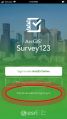 Figure 2: On this screen, always choose "Continue without signing in".
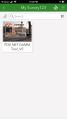 Figure 3: On this screen, you'll find any surveys you have uploaded. For the DAMM, select the latest version available to you.
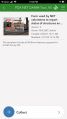 Figure 4: Click on "Collect" and the survey will launch.


