Winlink Procedures for Subnet Controllers: Difference between revisions
BruceSchafer (talk | contribs) m →Handling Winlink Formal Traffic from EOC: added reference to deployment |
BruceSchafer (talk | contribs) →From Field: Corrected typos in form numbers |
||
| (One intermediate revision by the same user not shown) | |||
| Line 1: | Line 1: | ||
=== Using the Winlink Check-in Form to Report a Roster to the Portland EOC === | |||
Winlink Express includes a template called Winlink Check In. This is a very general form that allows operators to use Winlink to check in during a drill, exercise, or deployment. We sometimes ask subnet control operators to use this form to report the roster of NET teams that have checked into their regional subnet | |||
* Create a new message | |||
* Click on Select a Template. | |||
* Click on the + next to Standard Templates. | |||
* Click on the + next to General Forms. | |||
* Click on Winlink Check-In.txt. | |||
* Click on Select. | |||
* This should open your web browser and display a form. | |||
* Fill in the form. | |||
* When you get to the Comment field | |||
** Enter the tactical call sign of the first station that checked in. | |||
** Enter the name of the team represented by the tactical call sign. | |||
** Press Enter to start a new line | |||
** Repeat the above steps for each of the other stations that have checked into your subnet. | |||
* Click on Submit at the bottom. | |||
* Click on OK. (You may want to close the browser tab that you just used for the template.) | |||
* Navigate back to Winlink. | |||
* You should see the content of the form reformatted in the body of your message. | |||
* Fill out the To field with the call sign of the station that should receive the message: W7ECC | |||
* See [[Winlink Procedures for Subnet Controllers#Preparing Your Winlink Traffic for the Portland EOC|Preparing Your Winlink Traffic for the EOC.]] | |||
* See [[Winlink Procedures for Subnet Controllers#Transmitting and Receiving Traffic Using a Gateway|Transmitting and Receiving Traffic Using a Gateway]] | |||
=== Handling Winlink Formal Traffic from EOC === | === Handling Winlink Formal Traffic from EOC === | ||
During an exercise or deployment you may receive formal messages from EOC in the form of Winlink messages with attached ICS 213s. Normally, Winlink will automatically open a web browser window or tab to display the message in a format that looks much like a printed ICS 213. If it doesn’t and you receive a message that has a subject starting with “213-”, you should also see a paperclip icon in the left-most field of the summary line in your Inbox. If you click on the paperclip icon, Winlink should open the message in a browser window. When you are ready to enter a reply to the message, you should use the steps described in Instructions for sending a REPLY to a ICS213. Note, however, you should not have more than one reply open at once as it's easy to confuse Winlink about which message is being replied to and it may lose a reply if you have more than one open at a time. | During an exercise or deployment you may receive formal messages from EOC in the form of Winlink messages with attached ICS 213s. Normally, Winlink will automatically open a web browser window or tab to display the message in a format that looks much like a printed ICS 213. If it doesn’t and you receive a message that has a subject starting with “213-”, you should also see a paperclip icon in the left-most field of the summary line in your Inbox. If you click on the paperclip icon, Winlink should open the message in a browser window. When you are ready to enter a reply to the message, you should use the steps described in Instructions for sending a REPLY to a ICS213. Note, however, you should not have more than one reply open at once as it's easy to confuse Winlink about which message is being replied to and it may lose a reply if you have more than one open at a time. | ||
| Line 55: | Line 79: | ||
==== From Field ==== | ==== From Field ==== | ||
In this case, we're talking about the From field of the Winlink message, which will typically be different than the From field of of an ICS Form 213 being sent by Winlink. The From field of the Winlink message should indicate which station is sending the message by Winlink while the From field in an ICS Form | In this case, we're talking about the From field of the Winlink message, which will typically be different than the From field of of an ICS Form 213 being sent by Winlink. The From field of the Winlink message should indicate which station is sending the message by Winlink while the From field in an ICS Form 213 indicates the person who originated the Form 213 (or equivalent NET Form 8). | ||
For NET exercises we recommend that you use tactical addresses for the From field instead instead of your FCC call sign Using a tactical addresses instead of your FCC has several advantages. In particular, they can be associated with the name of regional subnets. Using a regional tactical address as your From address will help assure that replies are directed to the subnet controller for the region on duty when replies to that message after a shift change. | For NET exercises we recommend that you use tactical addresses for the From field instead instead of your FCC call sign Using a tactical addresses instead of your FCC has several advantages. In particular, they can be associated with the name of regional subnets. Using a regional tactical address as your From address will help assure that replies are directed to the subnet controller for the region on duty when replies to that message after a shift change. | ||
Latest revision as of 12:12, 1 June 2026
Using the Winlink Check-in Form to Report a Roster to the Portland EOC
Winlink Express includes a template called Winlink Check In. This is a very general form that allows operators to use Winlink to check in during a drill, exercise, or deployment. We sometimes ask subnet control operators to use this form to report the roster of NET teams that have checked into their regional subnet
- Create a new message
- Click on Select a Template.
- Click on the + next to Standard Templates.
- Click on the + next to General Forms.
- Click on Winlink Check-In.txt.
- Click on Select.
- This should open your web browser and display a form.
- Fill in the form.
- When you get to the Comment field
- Enter the tactical call sign of the first station that checked in.
- Enter the name of the team represented by the tactical call sign.
- Press Enter to start a new line
- Repeat the above steps for each of the other stations that have checked into your subnet.
- Click on Submit at the bottom.
- Click on OK. (You may want to close the browser tab that you just used for the template.)
- Navigate back to Winlink.
- You should see the content of the form reformatted in the body of your message.
- Fill out the To field with the call sign of the station that should receive the message: W7ECC
- See Preparing Your Winlink Traffic for the EOC.
- See Transmitting and Receiving Traffic Using a Gateway
Handling Winlink Formal Traffic from EOC
During an exercise or deployment you may receive formal messages from EOC in the form of Winlink messages with attached ICS 213s. Normally, Winlink will automatically open a web browser window or tab to display the message in a format that looks much like a printed ICS 213. If it doesn’t and you receive a message that has a subject starting with “213-”, you should also see a paperclip icon in the left-most field of the summary line in your Inbox. If you click on the paperclip icon, Winlink should open the message in a browser window. When you are ready to enter a reply to the message, you should use the steps described in Instructions for sending a REPLY to a ICS213. Note, however, you should not have more than one reply open at once as it's easy to confuse Winlink about which message is being replied to and it may lose a reply if you have more than one open at a time.
When you receive a formal message from EOC, please route it to the appropriate teams by contacting the corresponding AROs and reading the message to them as a NET Form 8.
Handling Replies to Winlink Formal Traffic
When an ARO informs you that they have a reply to such a message, ask for its precedence if you don’t already have it. If the precedence is equal to or greater than the traffic you are currently handling,
- Ask the ARO for the subject and time of the message to which they are replying.
- Find the original message in your log.
- Assuming you received the original message by Winlink use these substeps. Otherwise see Handling Replies to EOC Traffic Originally Received by Voice.
- Find the original message in your Winlink Inbox or your Read Items folder.
- Follow steps 2 through 5 of Instructions for Sending a Reply to an ICS213. As part of step 5, type the reply directly into the Winlink template while you have the ARO read it to you. Ask for any fills you need. Note: Winlink Express will allow you to create multiple replies to the same ICS 213 message. You will find this useful as you will probably have more than one team reply to each message from EOC. Do not, however, have more than one reply open at a time as this will confuse Winlink Express.
- Before you post the reply in your Outbox or your Draft Folder, change the From address from your FCC call sign to your regional Winlink tactical address by clicking on the down arrowhead next to your call sign.
- You will notice that Winlink will automatically fill in the To field of the Winlink message (not the attached ICS 213) with the address in the From field of the original Winlink message, whether it was an FCC call sign or a Winlink tactical address.
- Before you post the reply in your Outbox or your Draft Folder, change the From address from your FCC call sign to your regional Winlink tactical address by clicking on the down arrowhead next to your call sign.
- Depending on the precedence of the reply relative to other traffic, post the reply to your Outbox or save it in your Draft folder and move it to your Outbox later.
When you are ready to transmit the replies in your Outbox to the EOC, see Transmitting and Receiving Traffic Using a Gateway.
Special Procedure for Handling Multiple Replies to a Winlink Message from the Emergency Operations Center
If you have several teams checked into your subnet and you have read their AROs a Winlink message from the EOC, you should consider whether you will are likely to receive several replies in a row to this message. If so, it may be more efficient to use one ICS 213 reply than to use several separate replies. You will find a procedure of accomplishing this below. You should only use this procedure when the following three conditions are true:
- The message from EOC did not have a precedence of Emergency.
- It is reasonable to expect that more than one ARO will have a reply ready in a short amount time. (The most likely situation when this would be true is when the AROs are in a position of answering the message themselves rather than routing the message to their Incident Team Leader. For example, a simplex request asking for the weather conditions in the neighborhoods.)
- You are not handling replies to other messages at the same time.
If any of the the above conditions is not true, use separate ICS 213 replies for each reply as described in Handling Replies to Winlink Formal Traffic above.
If all three conditions above are true, you may want to use the following steps to combine multiple replies into one ICS 213 reply.
- Find the original message in your Winlink Inbox or your Read Items folder.
- Follow steps 2 through 5 of Instructions for Sending a Reply to an ICS213. As part of step 5, type the name of the team replying to message followed by a colon. Then type the reply directly into the Winlink template while you have the ARO read it to you. When the ARO reads field 10 (the name and position of the person replying), add that information after the reply rather than in field 10 of your reply template.
- Ask for any fills you need.
- Repeat step 5 for reach team's reply.
- Once you have all the replies or you expect some time will elapse before you get any more replies, fill in Field 10 with your name and position and click on Submit.
- Before you post the reply in your Outbox or your Draft Folder, change the From address from your FCC call sign to your regional Winlink tactical address by clicking on the down arrowhead next to your call sign
- Depending on the precedence of the reply relative to other traffic, post the reply to your Outbox or save it in your Draft folder and move it to your Outbox later.
When you are ready to transmit the replies in your Outbox to the EOC, see Transmitting and Receiving Traffic Using a Gateway.
Handling Replies to EOC Traffic Originally Received by Voice
- Use Winlink to create a new message. The reason we’re not asking you to put the replies from the teams in the reply section of a Winlink ICS 213 in this case is that Winlink Express doesn’t allow you to fill in the reply section unless you previously received the ICS 213 by Winlink. In this case you received the original message by voice.
- If the reply is to a message that came from the EOC, put W7ECC in the To field of the Winlink message. (You can leave the Subject field blank because the next step will fill it in automatically.)
- Then select the ICS 213 template. See Checklists for Winlink Tasks for details. Note: Avoid having more than one Winlink template open at once. If you need to open another one, be sure and Save or Submit the first one before opening another.
- In the To field of the 213, put the person that sent the original message.
- In the From field put your Simplex Region name followed by the word “Region”.
- In the Subject field of the 213 template, Put the word “Reply” followed by the subject of the original message.
- In the Message body of the 213, put the name of the team providing the reply followed by a colon and the reply. If you receive multiple replies to the same message in rapid succession, add each to the message body field of the same ICS 213, labeling each with the corresponding team name. Otherwise, submit the message and post it to your Outbox.
- When you are ready to transmit the replies in your Outbox to the EOC, see Transmitting and Receiving Traffic Using a Gateway.
Addressing Winlink Messages
Winlink messages can be addressed to and from FCC call signs as long as the person associated with that call sign has registered with Winlink.org. Winlink also allows the From and To fields of messages to contact tactical addresses as long as these addresses are registered in advance.
From Field
In this case, we're talking about the From field of the Winlink message, which will typically be different than the From field of of an ICS Form 213 being sent by Winlink. The From field of the Winlink message should indicate which station is sending the message by Winlink while the From field in an ICS Form 213 indicates the person who originated the Form 213 (or equivalent NET Form 8).
For NET exercises we recommend that you use tactical addresses for the From field instead instead of your FCC call sign Using a tactical addresses instead of your FCC has several advantages. In particular, they can be associated with the name of regional subnets. Using a regional tactical address as your From address will help assure that replies are directed to the subnet controller for the region on duty when replies to that message after a shift change.
When you start a new message, Winlink Express will automatically fill in your Winlink address in the From field. Notice, that next to your call sign is a down arrowhead. If you click on it, Winlink will list any tactical addresses that you have enabled. If you click on a tactical address it will replace your FCC call sign in the From field.
To Field
Messages intended for the Portland Emergency Operations Center should be addressed to W7ECC regardless of the name in the To field of the ICS 213 or or other form associated with the message. Staff at the EOC will route the message to the appropriate person based on the To field of any ICS form being used.
Tactical Addresses for Regional Subnet Control Operators.
During an exercise or deployment, there may be shift changes. If a Winlink message is addressed to the FCC call sign of a particular subnet control operator and that operator completes a shift before receiving it, the message will not be received by the next operator for the same region. By using a tactical address for a particular subnet, the messages will be available to the next controller who enables that address on their copy of Winlink Express using the password associated with the address. Here is a list of the tactical addresses for the NET simplex regions:
- Alameda North: PDXNETAN-1
- Alameda South: PDXNETAS-2
- Columbia: PDXNETCO-1
- New Northeast: PDXNETNN-1
- Outer East: PDXNETOE-1
- River North: PDXNETRN-1
- River South: PDXNETRS-1
- Southeast: PDXNETSE-1
- Westside: PDXNETWE-1
For more on Tactical Addresses including how to set them up using Winlink Express see Using Winlink Tactical Addresses
Preparing Your Winlink Traffic for the Portland EOC
If you have Emergency or Priority messages, prepare these messages by creating Winlink messages using the ICS 213 template. Alternative: Transcribe Emergency messages onto a NET Form 8 rather than entering it into a Winlink ICS 213 template.
Note: If the message you are transcribing does not have approval information, put “...” in the corresponding fields of the Winlink Form so it allows you to submit it.
After you have completed your ICS 213, click on Submit and close the browser window. You will see the content of the ICSE 213 in the body of a Winlink message.
- Update the From field by clicking on the the "V" shape next to your FCC call sign and selecting your region's tactical address. If no tactical address is shown, see the section above regarding enabling a tactical address.
- Set the To field of the Winlink message to W7ECC.
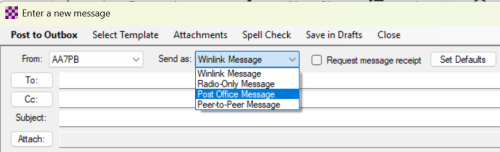
- If you will be accessing a gateway when gateways are unlikely to have access to the Internet, you need to indicate that your message should have the "Post Office" type so that it stays at the gateway rather than being routed to a Command Message Survey in the Internet "cloud". This will allow it to accessed by other Winlink Express clients by accessing the same gateway. To restrict message to a particular gateway, any message you send must have the Post Office type. During a Citywide Deployment Exercise or after a Cascadia earthquake or disaster when Internet access is compromised, you need to mark each message as a "Post Office Message" or change the default message type to "Post Office" so all your subsequent messages will be treated as Post Office Messages.
Selecting the Post Office Message type for a particular message.
- i
- i

Specifying that messages should default to Post Office type.


- If you don't specify the Post Office message type your message will be considered a standard Winlink Message. In this cased, if the gateway doesn't have access to the Internet, no warning or error message will appear and your messages will remain in the Outbox. In this case if you want your unsent messages to be handled as Post Office messages, double-click on the messages in the Outbox, change the type to Post Office, and Start your gateway session again.
Contacting EOC When You Have Emergency Traffic
If you have Emergency Traffic, contact Tactical Net on MC-8 informing it about these messages before transcribing Priority messages. Tactical Net may
- take your Emergency messages by voice;
- give you immediate access to the Winlink gateway to transmit your Emergency traffic; or
- tell you that Command Net will call you back on your frequency to either take your message by voice or give you time on the Winlink gateway to transmit them by Winlink.
Note: If you transmit an Emergency message by voice, you should delete it from your Winlink Outbox so you don’t accidentally send a duplicate copy. If you are asked to use a Winlink gateway to transmit your Emergency messages, you should temporarily move any Priority messages already in your Outbox to another folder and then move them back to your Outbox box when you have been given a gateway to send them.
If you have previously posted Emergency messages in your Outbox that have not yet been transmitted and you have just transcribed a new Priority message, it is best not to put it directly in your Outbox as you shouldn’t tie up the gateway transmitting messages of two or more precedence levels. Instead of posting the lower precedence message directly to your Outbox, click on Save in Drafts. You can move the messages in your Draft folder to your Outbox after you have transmitted your higher priority messages. Alternatively, you can copy messages in your Draft folder to personal folders named “Priority”, “HealthWelfare” and “Routine” and later copy messages of a particular precedence to your Outbox.
If you have Priority messages and you have already handled any Emergency messages, you should post your Priority messages to your Winlink Outbox or copy any Priority messages you have previously saved in other folders to your Outbox and then follow the instructions in Transmitting and Receiving Traffic Using a Gateway below.
If you have Health & Welfare or Routine messages you can prepare them in the same way as described above, but do not put them in your Winlink Outbox until EOC has told you that it is taking messages at those precedence. Instead select “Save in Drafts” and wait until it is time to transmit them to move them to your Outbox.
Preparing Traffic for Another Regional Subnet
If a Team ARO has a net Form 8 that is intended for another team, consider its precedence.
- If it is an Emergency Message you should transcribe it on a NET Form 8 or and ICS 213 and then contact the regional subnet for the team for which the message is intended. As you will probably not know which subnet that team has checked into you should contact Tactical Net on MC-8 and request the regional subnet associated with the team.
- If the message is a Priority message, you should transcribe the message into a Winlink ICS Form 213 as described above. Then contact Tactical Net to obtain the regional subnet associated with the destination of the message. Then use the table of Regional Tactical Addresses above to address the Winlink message.
Transmitting and Receiving Traffic Using a Gateway
After listening to the gateway frequency until it appears to no longer be busy, open and start a Packet Winlink or Vara FM Winlink session. If the exercise instructions indicate that a pair of experimental gateways have been set up at Portland Emergency Coordination Center, use one of the following gateways. Otherwise choose any gateway after asking Winlink Express to update its table of gateways. See “Steps for Updating a Table of Available Gateways” in Checklists for Winlink Tasks.
| Function | Name | Frequency (MHz) |
| Experimental Packet Gateway | KI7QIB-12 | 145.030 |
| Experimental Vara Gateway | KI7QIB-12 | 145.030 |
Try once or twice to send your message and then stop using the gateway regardless of whether you succeeded so they can be allocated to another subnet control operator.
If you don’t succeed in using one of the experimental gateways, try these alternatives and log which alternative you end up using:
- Contact Tactical Net and request voice transmission if you have messages with a precedence of Emergency.
- Use another gateway if you are relatively certain that the gateways can access the Internet to exchange mail with the Common Message Servers.
- If you have Internet access, use Telnet Winlink.
- Transmit by regular email. For instance, W77ECC@winlink.org. Put the following at the beginning of the subject to facilitate obtaining “white list” status for your message: //WL2K
- Hand deliver if that’s possible.
After successfully contacting a gateway, check your Inbox for new messages including messages from EOC and respond accordingly. Use the precedence of such messages to determine when you will forward them to the intended team or person. When voicing a message add “This is an Exercise.” to the beginning of the body of each message unless such words are already included. If you receive a message that it is a reply to a previous message, inform the associated ARO that it is a reply and give the subject, date and time of the original message before reading the reply so the ARO can record the reply in the reply section of the original Form 8.
Instructions for sending a REPLY to an ICS213
1. Close the open browser Window to return to Winlink Express.
2. Back in Winlink Express, Double CLICK on the the Message line for the 213.

3. This will open up the plain text version of the message.
4. Now click on the REPLY menu item.

The Reply to message template will open up in the browser.
5. Now type in the response and when done click SUBMIT.
Instructions for Generating an ICS 309
After an exercise or at the end of a deployment shift you should generate an ICS 309 using Winlink Express. This report will list all traffic you have sent and received using Winlink Express. See Steps for Generating an ICS 309. Any Winlink traffic listed on the resulting ICS 309 does not need to be listed on a NET Form 8. You should still use NET Form 8 or a regular ICS 309 to list traffic you sent or received by voice, however.